A browser profile for every account.
Create profiles, give each one a proxy, open them side by side, and share them with your team. Here is the whole app, screen by screen.
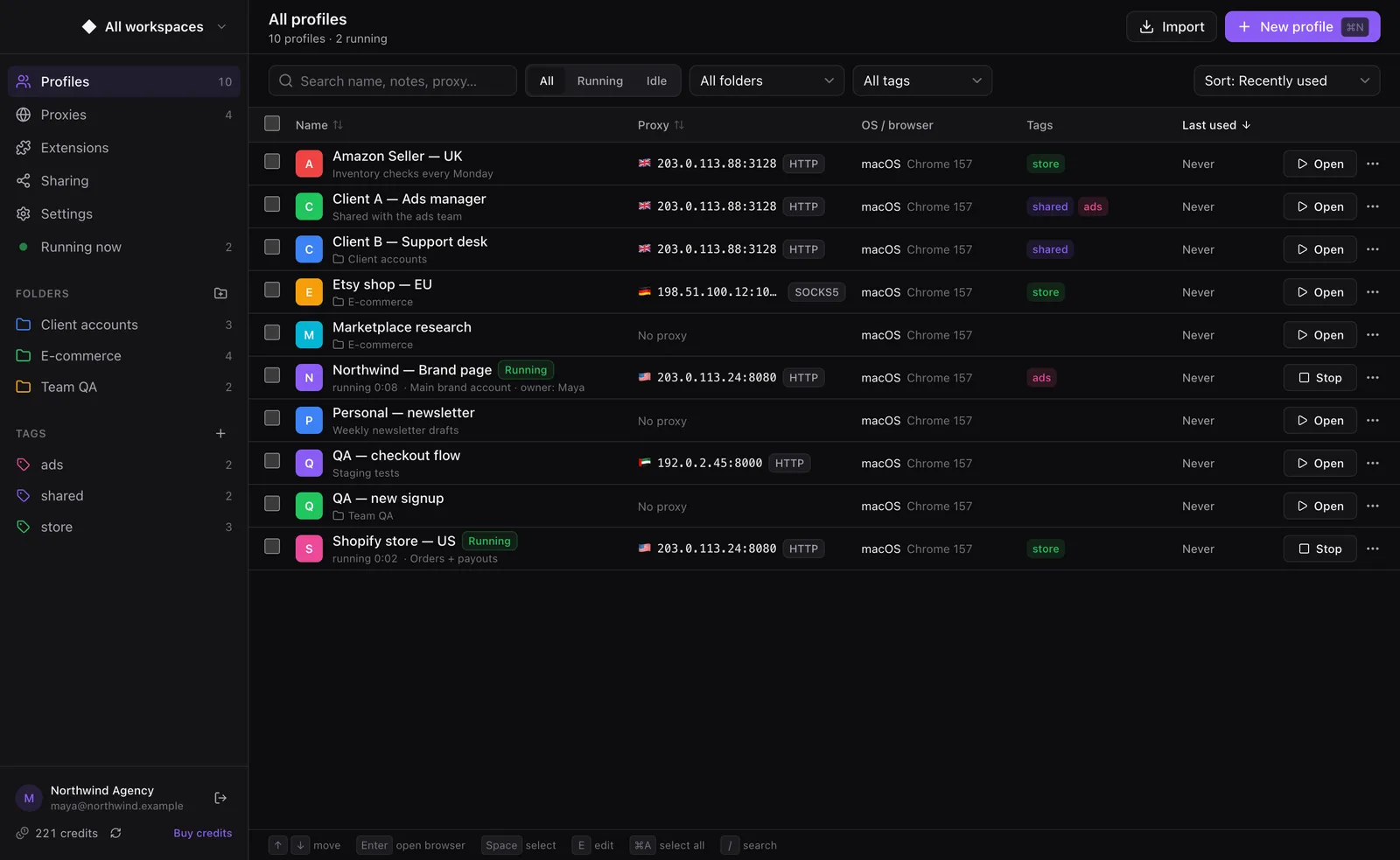
All profiles in one table: proxy, browser, tags and status at a glance.
Up and running in three steps.
Download and sign in
Install the app, then paste an API key from your Sessionat dashboard. New accounts are free.
Create profiles
Name each profile, pick a folder and tags, and attach a proxy if you use one.
Open and work
Each profile opens in its own Chrome window with its own logins. Close it and everything is kept.
Everything you need to run many accounts.
Separate profiles
Every profile is its own browser with its own cookies, logins, history and extensions. Open as many side by side as you need.
A proxy per profile
HTTP, HTTPS and SOCKS proxies. Save proxies once, attach them to any profile, and check their location for free before you open it.
No WebRTC IP leaks
When a profile uses a proxy, WebRTC is routed so pages see the proxy address, not your real one.
Sync across your Macs
Sign in on another Mac and your profiles, folders, tags and saved proxies are there, with edits kept in step. They are encrypted on your Mac before upload. Logins and cookies stay on the Mac where you use them.
Share with your team
Send a profile to a teammate with a share link. Revoke the link at any time; importing a shared profile is free.
Folders, tags and search
Group profiles by client or project and filter by tag. ⌘K opens a command palette for every action, and the profile table works from the keyboard.
Cookies in and out
Import or export cookies for a profile when you move work between machines.
Chrome extensions
Install extensions from the Chrome Web Store into the profiles that need them.
Your Chrome, kept separate
Profiles open in the Google Chrome already on your Mac, each in its own isolated profile folder. A signed Sessionat engine is coming as an option.
Runs on Chrome. Our own engine is next.
Profiles open in the Google Chrome already on your Mac, each in its own profile folder with its own cookies and logins, so install Chrome first. We are rolling out an optional Sessionat engine: a Chromium build that we sign and notarize and deliver through a signed update feed. It will appear in Settings → Browser engine.
- Every engine download is signature-checked before it is installed
- A failed download never replaces the engine you are using
- Switch back to the previous version, or to Chrome, in one click
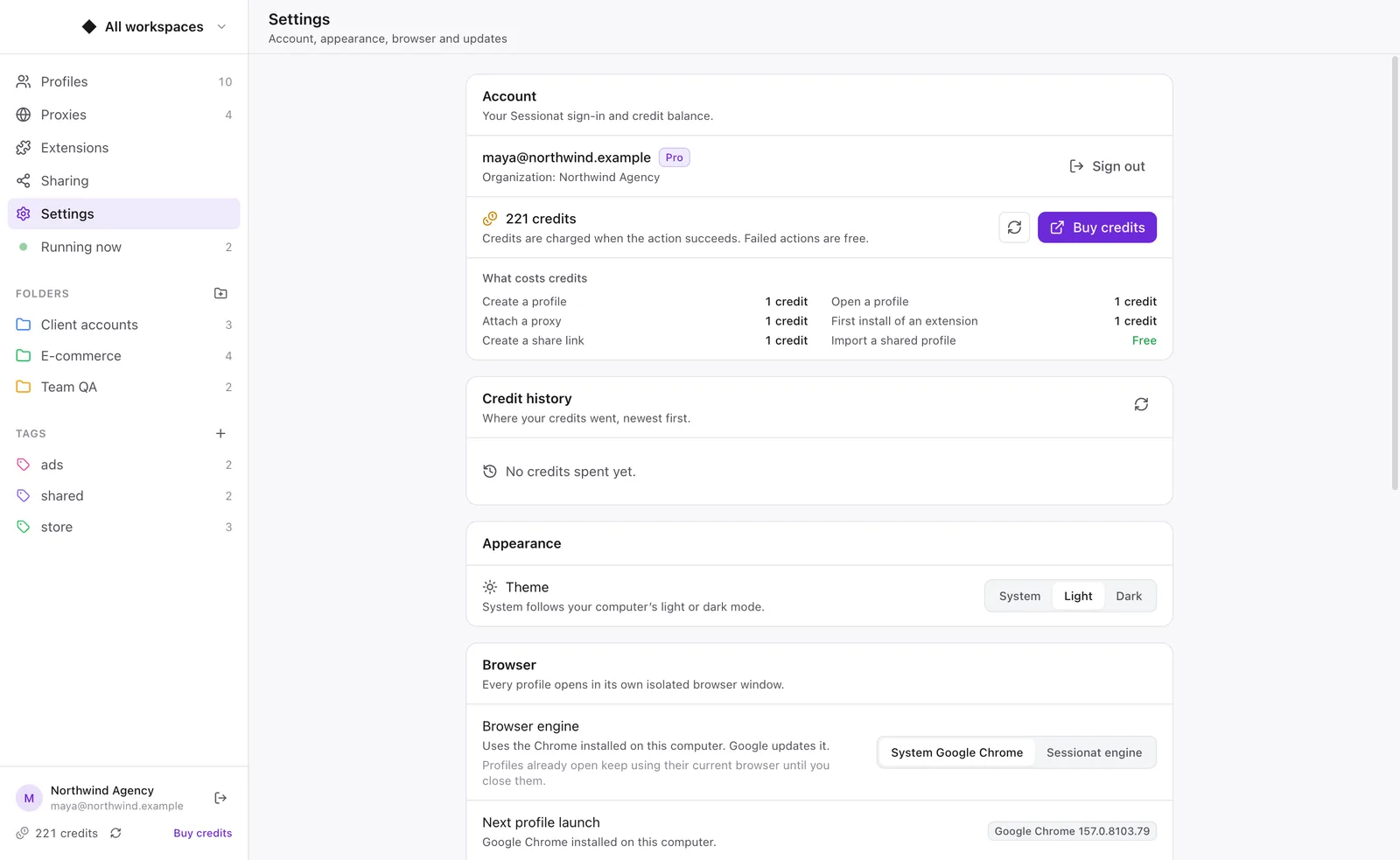
Free app. Pay only for what you use.
Credits belong to your Sessionat account and are shared with the Chrome extension. They are charged only when an action succeeds.
What uses credits
| Create a profile | 1 credit |
| Open a profile | 1 credit |
| Attach a proxy | 1 credit |
| First install of an extension | 1 credit |
| Create a share link | 1 credit |
| Import a shared profile | Free |
| Failed actions | Free |
Questions
What is Sessionat Desktop?
A Mac app that manages many separate browser profiles. Each profile keeps its own cookies, logins, extensions and proxy, so you can work in many accounts at the same time without them mixing.
Is it available for Windows or Linux?
Not yet. Sessionat Desktop is available for macOS today (Apple silicon and Intel). Windows and Linux versions are in progress.
How much does it cost?
The app is a free download. Actions such as creating or opening a profile use credits from your Sessionat account: one credit each, charged only when the action succeeds. Credit packs start at 500 credits for $5.
Do I need a Sessionat account?
Yes. Create a free account on sessionat.com, create an API key, and paste it into the app. The same account works with the Sessionat Chrome extension.
Which browser runs my profiles?
The Google Chrome installed on your Mac, so please install Chrome first. Each profile gets its own Chrome profile folder. An optional Sessionat engine (a Chromium build we sign and notarize, delivered through a signed update feed) is being rolled out and will appear in Settings → Browser engine.
Do I need a proxy?
No. Profiles work without one. If you use a proxy or VPN, you bring your own; Sessionat stores it per profile and lets you check its location before opening. Chrome cannot sign in to SOCKS5 proxies that need a password, so use HTTP(S) for those.
Where is my data stored?
Cookies, logins and history stay on your Mac. With sync on (Settings → Sync across devices), your profile settings, folders, tags and saved proxies, including proxy passwords, are encrypted on your Mac and stored by Sessionat so your other Macs can open them; Sessionat keeps the key that lets your organization's Macs decrypt them. You can turn sync off at any time. Your Sessionat API key and proxy passwords are encrypted with the macOS Keychain on your Mac. For billing, our server records each paid action with the profile name (and, for proxies, the proxy host and port). A share link uploads the shared profile, including its proxy login, so share only with people you trust. Deleting a profile revokes the share links made from it on that Mac.
Ready when you are.
Free download for macOS. Windows and Linux versions are on the way.